
Slideshow – the hidden feature of Mac OS X
For those of you who aren’t aware of it, Mac OS X has a fantastic, and somewhat hidden away, feature to easily view images as a slideshow or an index sheet.
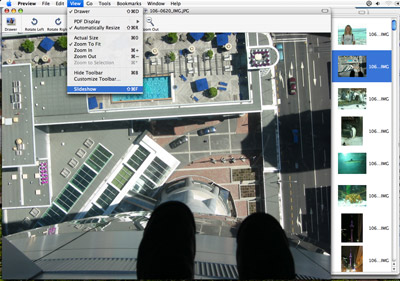
The feature is simply referred to as Slideshow and there are number of ways to trigger it. The most apparent option is to open up a number of images in Preview and then choose Slideshow from the View menu (Cmd + Shift + F).
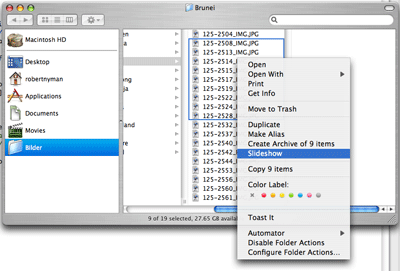
Another way to start a slideshow is to select the desirable number of images in Finder and then right-click on any of them and then choose Slideshow from the context menu. What is thorougly annoying, though, is that you can’t do this on a folder, but only images. Therefore, to view an entire folder with images as a Slideshowyou need to first select all files (Cmd + A) and then right-click on them to be able to start the Slideshow from the context menu.
Within the Slideshow view, when you move your mouse around, you are presented with a small toolbar giving you a few basic options:
- Back (Arrow left)
- Stop (actually, Pause)/Play (Space bar)
- Next (Arrow right)
- Index Sheet (I)
- Fit to Screen/Actual Size (F/A)
- Add to iPhoto
- Close (Esc)

The, by far, coolest and useful feature is the Index Sheet. Just open a Slideshow and press I to zoom all the opened images out into an Index Sheet. It will automatically adapt the size of each image so they are all viewable without scrolling. Navigate around with arrow keys and press Enter to select an image and go back to the regular Slideshow view.

Then, of course, the most outstanding way to do this is through Quicksilver. First, make sure that Slideshow Action is enabled under Plug-ins:
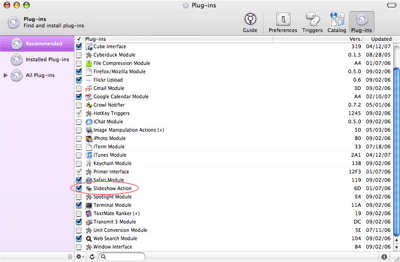
When you’ve made sure that it is enabled, trigger Quicksilver through your preferred keys (in my case, Cmd + Space bar), navigate to the desired folder, press Tab and then S followed by L (or browse down in the list of options with the Arrow down key) to choose Slideshow. Press Enter and your Slideshow starts! Do all of this fast, and perhaps followed by the I key to show the Index Sheet, and both you and your friends will be mightily impressed, wondering what hit them. 🙂
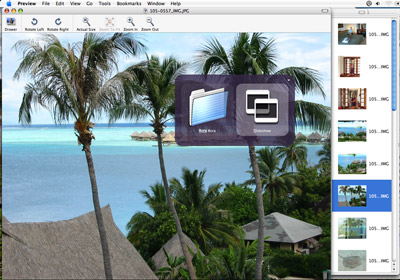
So, the short list version: press this key sequence to accomplish it all:
- Cmd + Space bar (for Quicksilver)
- B (e.g. for the Bora Bora folder)
- Tab (to move focus to the action field)
- S followed by L (to select Slideshow)
- Enter (to start the Slideshow)
- I (for the Index Sheet)
Note: All keyboard shortcuts mentioned are case-insensitive (or rather, lower-case if there’s any problem).
Very cool indeed!
I knew before that MacOSX is full of nice little effects that are not just nice to watch, but usefull as well. Everytime I come near a Mac I love to push F10 F11 an so on (not sure wich F-Key does wich effect now).
That's one of the reasons a MacBook is very high in my wishlist 🙂
Is there a way to see Title (metadata) when displaying a slide? I have a lot of photos with Title fields and want to use it.
Not that I know of.
Yes, it's a nifty feature. Too bad it's slow as hell (to get the contextual menu out when selecting say… 30-40 images).
Speaking of photos: I just updated my website with some imagery from last week's fishing trip to Norway =)
Georges,
Yes, it's outstanding! 🙂
markus,
Ah, I never go the contextual menu route, so I haven't noticed that. 🙂
Old post, I know, just wanted to fuss about the order pictures are displayed in the slideshow. All my images are straight from the camera and therefore in numeric order – all the same, the slideshow is fairly random, starting off in the middle of the pictures and proceeding from there. Very annoying when you want to start at the beginning, and end at the end. Any tips how to avoid this?
Simon –
this bugged the hell out of me too. i'm sure there's an easier method, but this one works:
open folder
select all
Ctrl+click the first file in the Drawer (if it isn't already open: View>Drawer)
Sort by: Name (it may think it's already sorted by name – re-educate it)
Shift+Cmd+F to start Slideshow
oops –
i omitted to say: open all the images in Preview before step 3!
my bad…
Thanks a lot for the slideshow order fix – mac.
iMac G5 rev.A OS 10.4.11
Now if one could save a reordered list of pictures, so as to able to replay it, that would be nice. The only way I know is through a convoluted way with iPhoto. Unless someone knows of another software to do this.
jb
I love Slideshow, but what annoys me about it, you can't change the amount of time each picture is displayed (it's approx 3 seconds).
If anyone knows a way to do this, or a shareware app that will do it?
I'd like to use preview to generate contact sheet of files in the folder and then create one image of all of them. I thought of using grabber to do this but can't figure out how to have grabber activate from within preview.
There is also a problem in that the forward/back arrows will not work when you first open up a file or files. Only after you have "played" the slide show into the second frame and paused it (after about 3-5 sec), will the fwd/back arrows work. This is nuts.
Also, the slideshow comes up in reduced size mode to make room for the controls, instead of in full screen mode. One has therefore to fool around with the controls to begin a normal slide presentation. This really trips up folks who are used to being able to present their charts in a presentation as they choose and not as the program chooses; especially those who are accustomed to using PowerPoint.
Apple is missing the boat here by imposing a highly inconvenient standard that differs from that of the leading product in this category. Too bad. All it would take is different defaults, with checkboxes to change behavior as desired.
Thanks a lot.
In Mac OS X 10.6.4 you can select all images and press option+command+y to start a slideshow. 🙂
Gr8 website.. Thanks for the Slideshow shortcut!
IN later versions of OSX (10.5 and above) the contextual menu says :Quick View for XX items” But it still works beautifully.
Thanks a lot for sharing information. 🙂
Works fine for me.
Using MacBook with OS X 10.6.7 and there is NO slideshow. Earlier versions of OS X did have though.
Thom,
Very true – thanks for pointing that out!
Well I’m using OS X 10.6.7 and the slideshow feature is definitely there (on my iMac at least), I’ve just watched all my holiday snaps using it….
Jon,
Well, it’s available via Preview, but not through the Finder anymore.
It’s still available via the Finder – you just have to hold the option key to change it from “quicklook” to “slideshow.”
Wade,
A, cool – thanks!
[…] 8 times This a a site that should help you out more than what I know about this subject.. Slideshow – the hidden feature of Mac OS X – Robert's talk […]
Interesante artículo, muchas gracias
Hi there
Its quite amazing that even after a few years I can type in a problem and come across your post that was posted way back in 2007 ( when I was still a PC maniac)
Many thanks for that post – it was still valid – I did not know if that feature – – I was sorting through my images on my mac – and thought how can I go through them as a slide show – so I searched and came across your post.
Works like a charm
I guess most of us are the same – who has the time to go through all the hundreds of features – until you actually need it
Thanks again
Jade,
Yep, the good thing with keeping old blog posts around! 🙂
Hi, do you know if the “Index Sheet” function is now removed (OSX 10.7.5)? I can’t seem to find it on Preview, and it’s so annoying cos my older Mac used to be able to do it. Why would they take it out? Is there another similar alternative? Thanks!
Cheryl,
Sorry, no idea. Apparently they dropped support for it.
Awesome, thanks very much for sharing!!
Still cant find an answer to ‘how to change the timing of the slideshow. Three seconds is not long enough. Any ideas?
You can do it but you need to work hard.
Hi Robert!
Exactly what I was looking for. Thank you!
Good to hear!
Ok – so I’m relatively new to a Mac environment and really new to Mac “Photos”. I can tell you that my pictures library managed to duplicate in the transition from a PC platform to a Mac and I haven’t quite gotten hold of it yet. ;-( But tonight I am trying to make a slideshow for a project. Woeful little info in the Mac help section. I am trying to manipulate the pictures into the order I want within the “Photos” slideshow program in this little “roll” under the (almost) full view of each picture. It’s tedious and difficult. I have 140 pictures in this slideshow and would like to just get them all on to the full screen so I can move them around rather than try to scroll through them at the bottom like an old roll of “picture negatives”. Can someone tell me how to manipulate these with ease? I’m getting carpel tunnel just trying to do this task!
Is there any way I can show my photos in Mac Photos randomly, not sequentially? I just upgraded to OS X El Capitan and it seems like its not available which is very disappointing. Thanks.
Is there any way to make the space bar pause the slideshow when using slideshow screen saver in El Capitan? I was able to use the space bar to pause and the left and right arrows to scroll backwards and forwards in the slideshow before I upgraded.